
Getting started with ROPAVIA
Choose the right starting point for exploring products, requesting advice, bidding and managing deployment.
Understand at a glance
Read in numbered order and open the instructions you need.
Explore and start work
Prepare for your purpose
Numbers show reading order, not actual progress.
Detailed instructions
Use Products & Solutions to browse products and Bidding (Matching Center) to view public opportunities. Check each item's status and distinguish the separate sample section from real listings.
Choose Sign in to ROPAVIA to save information, submit requests or proposals, and create projects. Check the account shown in My Page after signing in.
Open Account Settings in My Page to review personal preferences. Requests shows consultations and applications, Saved Information holds bookmarked resources, Notifications shows in-app updates, and Tasks lists unfinished project work.
For product registration and public activity, prepare a public profile under Public profile & posts. For publishing opportunities or submitting supplier proposals, select a role and request a separate review in Bidding Company Information. Invite colleagues through Organizations & Members and each project's participant controls.
Go to My Page → My Projects → New Project and enter a project name and the problem to solve. To request advice first, submit the consultation form on the Adoption Consulting page.
All detailed instructions are expanded for printing.
Before you proceed
- The consultation button beside the home problem field opens project creation. This navigation alone does not submit a request to ROPAVIA.
- Public-profile approval, bidding-company approval and organization membership are separate. Adding a company name in account settings does not grant company or project permissions.
- The current interface supports Korean, English, Japanese and Chinese. Changing display currency preserves the original amount and currency of a quotation.
- Saving a draft, sending an inquiry and selecting a preferred supplier are separate steps. None automatically completes a purchase, payment or contract.
Explore with pictures and screens
Choose a scene or screen to see the problem it addresses and what to check.
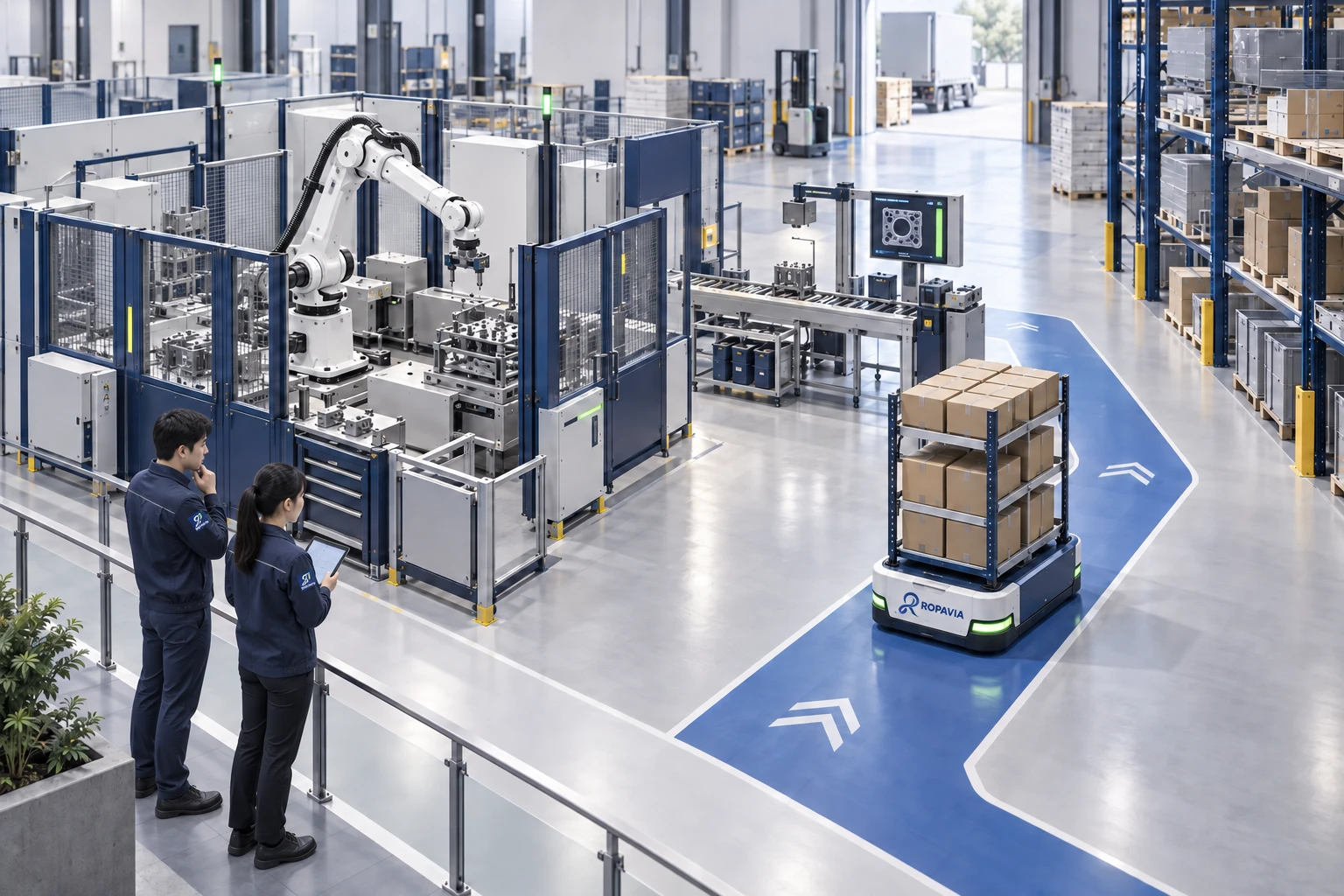
ROPAVIA connects robotics, AI and automation with people and the work they do.
A fictional scene created for illustration.